This page explains how to send us your print data through the TIER Group file exchange and how a print preview is approved. You open the order using the link in our email.
Have you been asked to approve a print preview? Everything you need is in the section “Approving a print preview”.
How the file exchange works
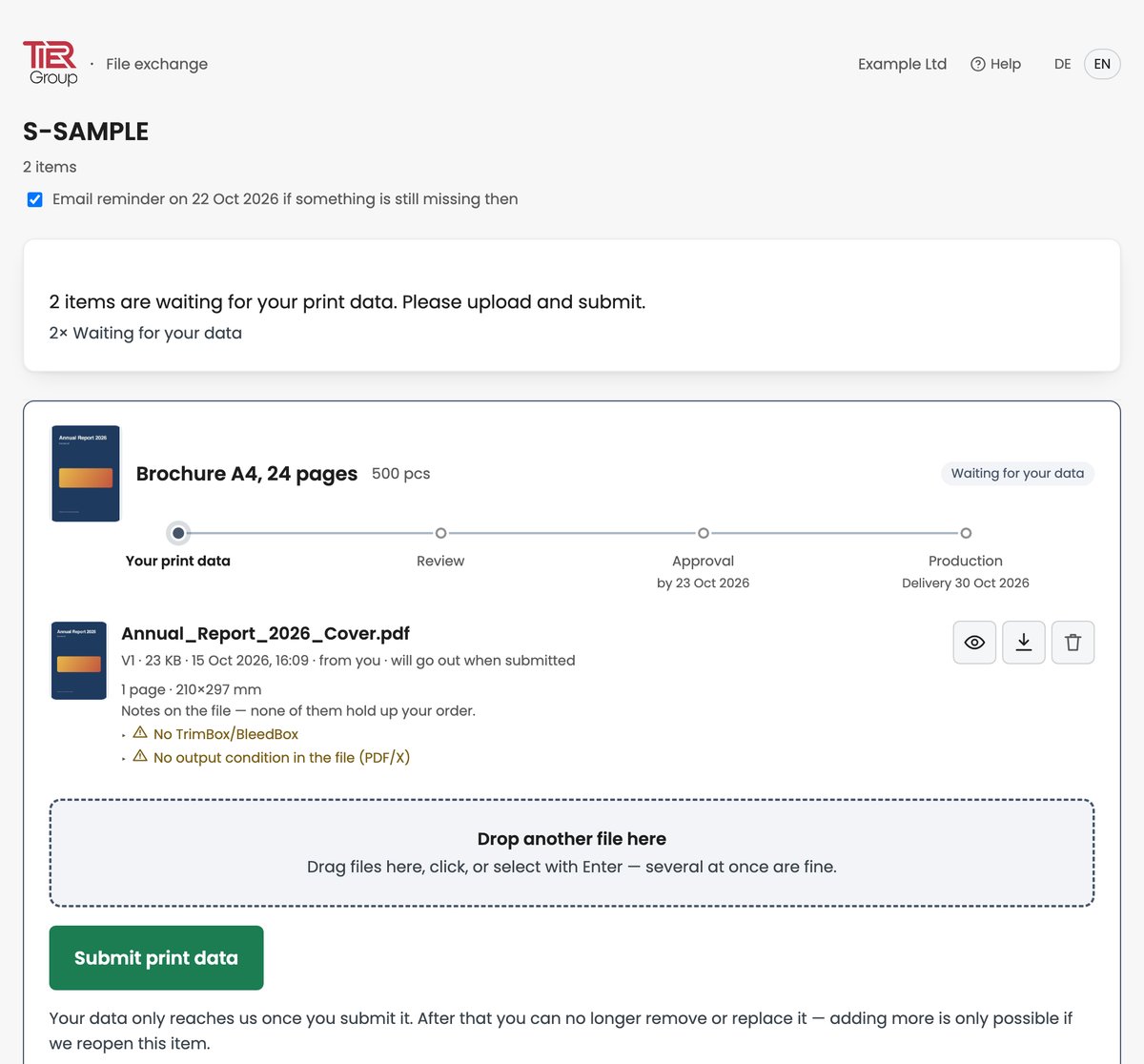
Every item in your order that needs print data has its own card on the page. Each item moves along on its own: one item can already be under review while another is still waiting for data.
The timeline on each card shows where the item stands:
- Your print data: you upload the files and submit them.
- Review: we review your print data and get back to you if anything does not fit.
- Approval: only if a print preview has been agreed for the item. Your approver approves the preview or requests changes.
- Production: everything is approved and nothing stands in the way of production.
If your approver requests changes, your card shows “Changes requested” with their text, and we incorporate the changes.
At the top of the page, one sentence tells you what is needed from you right now. Each card also shows a status, for example “Waiting for your data”, “Under review”, “With your approver” or “Approved for production”.
Uploading print data
- Drag the files onto the “Drop print data here” area of the matching item card. You can also click the area and select the files.
- You can add several files at once, for example cover and inside pages. They are transferred one after another, and a bar shows the progress.
- After the transfer, “Checking…” appears briefly. The file is then listed with its version, size and the note “will go out when submitted”.
Until you submit, you can delete a file again with the bin icon (“Remove”). To stop a transfer in progress, click “Cancel”.
The larger image at the top of the card opens a PDF file in the same viewer as the eye icon, and an image in a new tab. The eye icon (“View”) or the small thumbnail next to the file name lets you view PDF, JPG, PNG and SVG files directly in the browser; PDF files open in a viewer that shows all pages one below the other: you scroll through them, and the arrows and arrow keys jump one page forward or back. The arrow (“Download”) downloads any file, and “Download all files (ZIP)” at the top of the page downloads the current files of all articles at once, without earlier versions.
Submitting print data
Uploading alone does not send anything. Only “Submit print data” on the item card sends the files to us.
- Submit each item separately. Everything you have newly uploaded for that item goes out with it.
- The page asks you to confirm before submitting. After that you can no longer remove or replace the files; adding more is only possible if we reopen the item.
- For every submitted item you receive a confirmation of receipt by email. The card then shows “Under review”.
- If no print preview has been agreed for the item and the print data is fine, you receive the email “Print data accepted”, and the card shows “Approved for production”.
- Notes from the automatic check never stop you from submitting.
Notes on your files
After upload, the system automatically checks PDF, JPG, PNG and SVG files for common print issues. Other file types are accepted but not checked. The results appear right below the file; click a line to see the finding and, where there is one, the threshold. If nothing was found, it says “No issues found”.
These are notes only: none of them hold up your order, and you can submit your data regardless. Whether the data works for production is something we review after you submit.
PDF files
- “Bleed … mm”, “Bleed 0 mm” or “No TrimBox/BleedBox”: designs that run to the edge need some extra area beyond the final format, which is cut off when trimming. The check expects at least 3 mm and measures the first page. Without a TrimBox and BleedBox, the bleed cannot be evaluated.
- “Image resolution … dpi”: the lowest-resolution placed image is below 150 dpi. Such images can look blurred in print.
- “Images in RGB colour space (…)”: the file contains placed images in RGB, and the number in brackets says how many. The check uses CMYK, the usual colour space in print, as its reference; colours can shift during conversion.
- “Fonts not embedded: …”: the file uses fonts without including them; up to three names are listed. Missing fonts may be replaced by a different font in print.
- “No output condition in the file (PDF/X)”: the file does not state which printing condition it was made for. Exporting as PDF/X includes this information.
- “Inconsistent page sizes (…)”: the pages in the file are not all the same size.
Above the notes, the page shows the page count and the size in millimetres and, where the file contains them, the PDF/X version, output condition and spot colours.
Image files
- “RGB colour space”: the image is in RGB; the check uses CMYK as its reference.
- “Resolution … px”: at least one edge of the image is shorter than 500 pixels. Small images often have to be enlarged for print and then look blurred.
- “File extension does not match the content (…)”: the extension names a different image format from the one the file actually contains.
- “SVG without viewBox/size”: the SVG file does not define a size.
Files marked in red and files not checked
“PDF not readable”, “PDF without pages”, “Image not readable” or “File password-protected or encrypted” mean that the file was uploaded but could not be evaluated. You can still submit it; if possible, upload a version without password protection instead.
Very large files (over 200 MB, and images with a very high pixel count) are not checked; the note then says “Not checked” with the reason. For PDFs with more than 500 pages, only the size and bleed of the first page are evaluated. Notes appear in the language that was set when the file was uploaded.
When print data is rejected
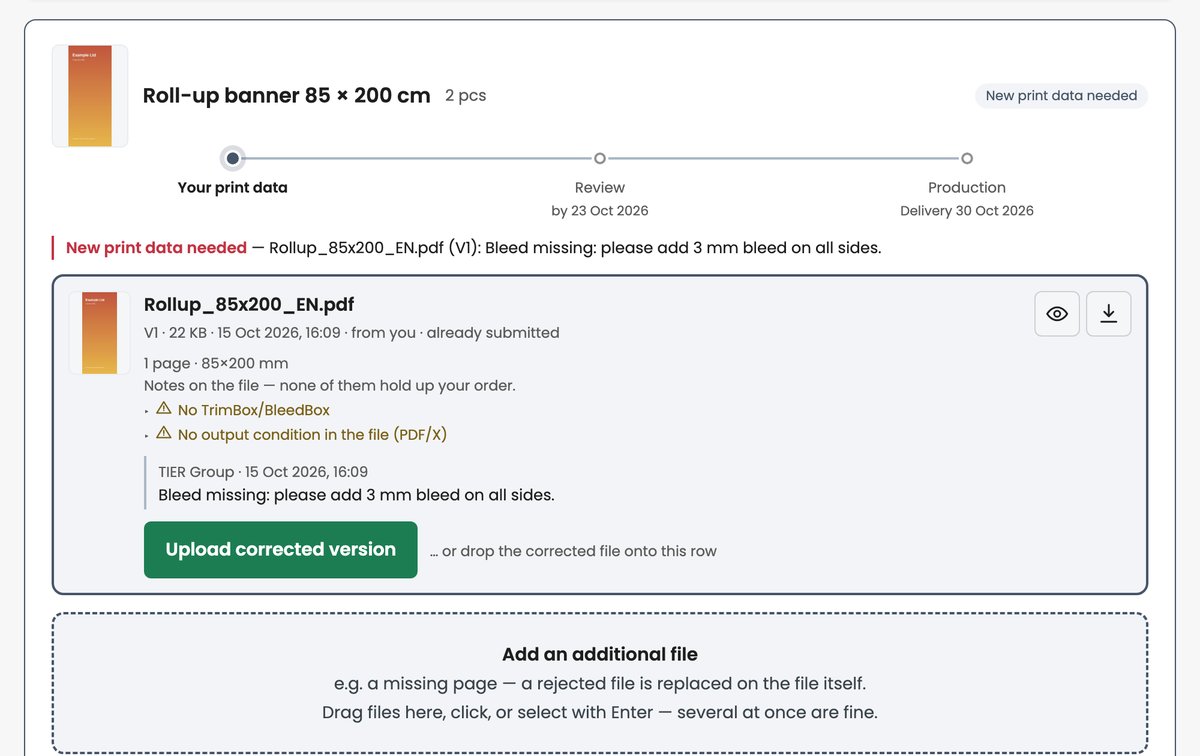
If the print data cannot be used for production, you receive the email “Print data correction required” with the reason. The card shows “New print data needed” together with the reason.
- Files with a comment are highlighted, and the comment appears right below them.
- On that file, click “Upload corrected version” or drag the corrected file onto its row. The new file becomes the next version, for example V2, whatever its name.
- If the reason applies to the whole item, use “New version” on the file you want to replace.
- If something is missing, such as a page, add it via “Add an additional file”. If exactly one file lands there, the page asks “Does this file replace an existing one?”. Choose the matching file or “No, additional file”.
- Submit the item again with “Submit print data”.
Files you do not replace remain valid and do not need to be uploaded again. Older versions are listed under “Earlier versions”; nothing is overwritten.
If we reopen an item for you for another reason, you receive the email “New print data required” with the reason. Then upload new files or use “New version” on a file, and submit the item again.
Approving a print preview
This section is for the person who approves the print preview; often this is the same person who supplied the print data. A print preview has been agreed for some items. As soon as it is ready, you receive the email “Your approval is required”.
You can only approve or request changes via the link in that email (or in “Your access for approvals”). The page where you upload print data also shows the preview, but has no buttons for approval.
What is a print preview?
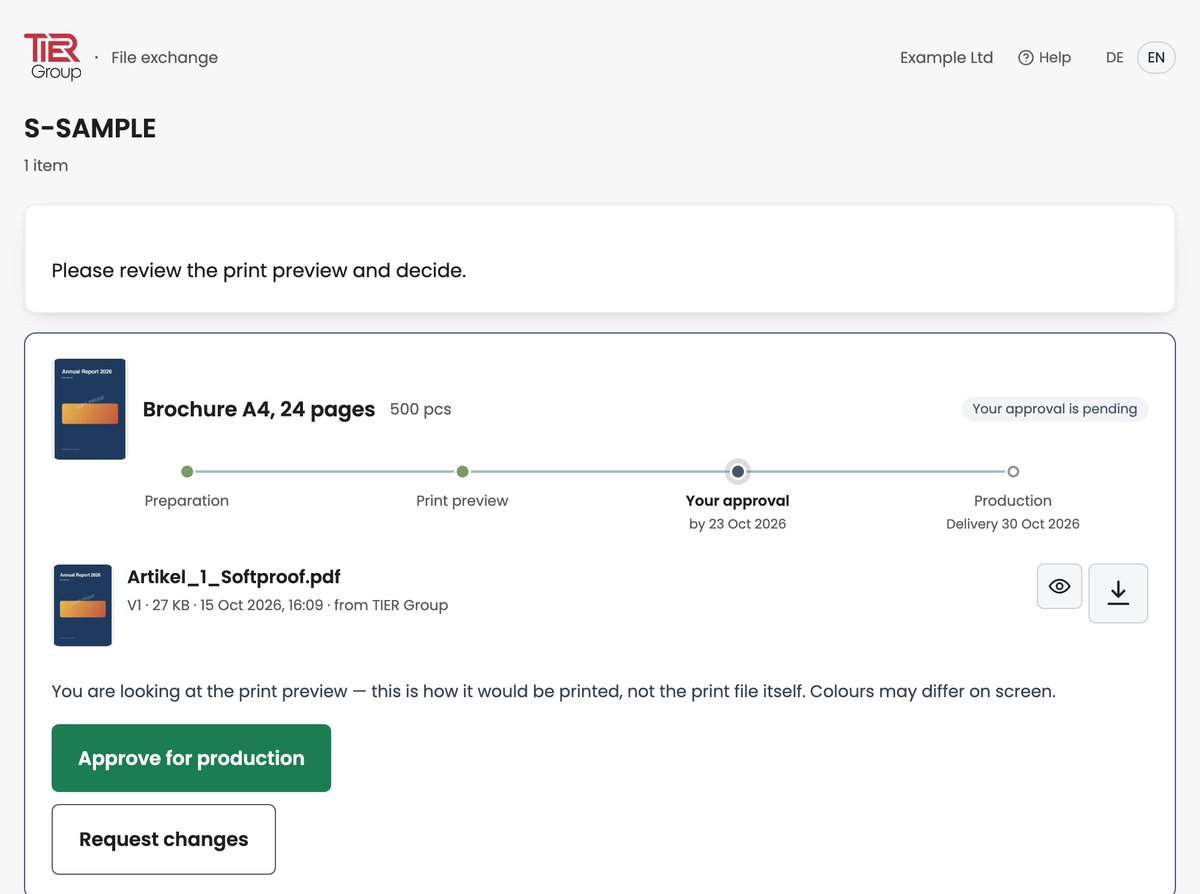
The print preview, also called a soft proof, shows how the item would be printed. You see the preview, not the print file itself. Colours shown on screen may differ and are not binding for the printed result.
Reviewing the preview
Your page only lists items for which a print preview has been agreed. Every item waiting for your decision shows “Your approval is pending”.
- The larger image at the top of the card opens a PDF file in the same viewer as the eye icon, and an image in a new tab.
- The eye icon (“View”) or the small thumbnail next to the file name opens the preview. For PDF files it shows all pages one below the other: you scroll through them, and the arrows and arrow keys jump one page forward or back. Images open in a new tab.
- Use the arrow (“Download”) to save the file. If there are several previews, “Download all files (ZIP)” at the top of the page downloads them all at once.
- Please check content, text and layout carefully.
What the status means
- “No preview yet” or “Preview being prepared”: the preview is not ready yet, and there is nothing for you to do. As soon as it is ready, you receive the email “Your approval is required”.
- “Your approval is pending”: the preview is waiting for your decision.
- “Changes requested”: we have your change request and are incorporating it.
- “Preview being revised”: we are revising the preview. Once the new version is ready, you receive the email “Your approval is required” again.
- “Approved”: nothing further is needed from you.
- “Cancelled”: the print data exchange has been cancelled, so there is nothing to approve.
Approving for production
“Approve for production” sends the item into production on a binding basis. It takes effect immediately, without a further confirmation, and cannot be undone on the page. After that, changes are only possible to a limited extent. The item then shows “Approved”.
You decide for each item separately. Your approval covers all preview files of that item.
Requesting changes
- Click “Request changes”. A field “General (applies to the whole item)” opens, plus one field for each preview file.
- Describe what needs to change. One reason is enough, either general or on a single file.
- Click “Submit change request”.
Your text is passed on exactly as written. Please do not include any company or contact details, and phrase it so that it is clear without a follow-up question.
The item then shows “Changes requested” and we incorporate your changes. Once the revised preview is ready, you receive the email “Your approval is required” again. Earlier versions are listed under “Earlier versions”.
Approval deadline
If a deadline is set, it appears in the timeline under “Your approval”, for example “by 12 Sep 2026”. Your approval must be in by then so that production can start on schedule. Nothing is approved automatically once the deadline has passed; the item waits for your decision. We do not send automatic reminders for approvals.
Good to know
- Switch the language at the top right (DE/EN). The setting applies to the page and to our further emails about this order. Submit a change request you have started first: the page does ask, but the text is lost when you switch.
- If the page says “This is no longer possible right now”, a newer state is available. Reload the page.
- If you approved by mistake or have a question about the preview, simply reply to our email “Your approval is required” and keep the line “Reference: Ticket#…” in your reply.
Deadline and reminders
Your order may have an approval deadline. By then the print data and, where agreed, the approval of the print preview must be complete. The timeline shows the deadline with “by” and a date at the last step before production, and the planned delivery date with “Delivery” under “Production”. If the deadline is moved, the page shows the new date.
- Reminder: if a deadline is set and print data is still missing from the day before, we send you one automatic reminder per deadline by email, if need be on the deadline day itself or later. It never comes on the day we ask you for print data, at the earliest on the day after. We may also remind you at other times. Files that are uploaded but not submitted count as missing.
- Turning reminders off: at the top of the page, untick “Email reminder …”. You will then receive no reminders at all for this order. Tick the box to turn them back on.
- Deadline passed: if the deadline is over and an item is still waiting for your data or being worked on by us, the page shows “The approval deadline (…) has passed.” at the top. Please send any missing data as soon as possible.
Frequently asked questions
How do I recognise your emails?
All emails about the print data exchange come from production@tier-group.com, and the subject starts with “Order” and your order number. The links in them lead to https://files.tier-group.com.
Your emails do not reach me.
Please check the spam folder or quarantine of your email program and add production@tier-group.com to your safe senders. If nothing turns up there, your IT can search the message trace for this sender. Your contact person at our company will also gladly send you the link again.
A dark window appears instead of the file selection.
If your browser shows something like “Zero Trust Mode”, “Protected Storage” or “No files” when you upload, your company probably opens unknown websites in an isolated browser from which nothing can be uploaded from your computer. Please ask your IT to allow https://files.tier-group.com and not to isolate it. Uploads and downloads go directly via https://storage.googleapis.com.
How large can a file be?
Up to 5 GB per file. The page does not accept larger files; see “A file cannot be uploaded”.
Which file types can I upload?
Common formats such as PDF, JPG, PNG, SVG or Office documents. PDF, JPG, PNG and SVG are checked automatically and can be viewed in the browser. Program files and scripts, for example .exe, .bat, .js or .dmg, cannot be uploaded. For very large files the preview may be missing (“Preview currently unavailable.”); you can still download the file.
A file cannot be uploaded.
If the page does not accept a file, one of these messages appears right on the card:
- “The file is larger than 5 GB and cannot be uploaded here.”
- “Files of type … cannot be uploaded for security reasons.”
- “This file cannot be uploaded as it is. Please check the file type, size (up to 5 GB) and file name.”
Trying again with the same file will not help. Make the file smaller, shorten its name or choose a different format; if you have questions, reply to one of our emails about this order.
The transfer was interrupted. What now?
If it says “Transfer interrupted — please drop the file again.”, simply drop the file again. Do not reload or close the page during a transfer, otherwise the transfer stops and you have to drop the file again.
Can I upload several files at once?
Yes. Drag several files onto the card at the same time or select several. They are transferred one after another; a card whose files are not yet being transferred shows “waiting …”. Each file belongs to the item on whose card you drop it.
I submitted the wrong file.
Once submitted, nothing can be undone on the page. Please reply to one of our emails about this order. If needed, we reopen the item so that you can replace the file with a new version.
What does “With your approver” mean?
The print preview is ready for approval. Often you are the approver yourself. Approving or requesting changes is only possible via the link in the email “Your approval is required” (or in “Your access for approvals”); the page where you upload print data also shows the preview but has no buttons for it.
How do I switch the language?
Choose German or English at the top right (DE/EN). The setting applies to the page and to our further emails about this order.
The print data exchange has been cancelled.
You receive the email “Print data exchange cancelled” with the reason. Every item on the page shows “Cancelled”; there is nothing further for you to do.
The page says “This is no longer possible right now”.
The state has changed in the meantime. Reload the page and it will show the current state.
Contact
Simply reply to one of our emails about this order and keep the line “Reference: Ticket#…” in your reply.